Dry stems, return stems and mix versions
Before you start
- StemShip 0.4.2 or later. If the app shows an update banner, click it. New downloads already have it.
- Ableton Live on a Mac, with StemShip in Print from Ableton mode. These three features need StemShip to run Live's export for you, so they aren't available with stems bounced from another DAW.
- Keyboard access switched on once: System Settings > Privacy & Security > Accessibility > StemShip.
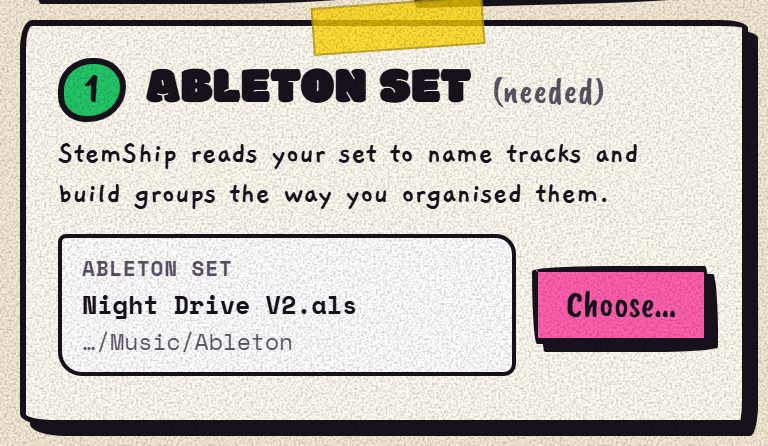
Choose your Ableton set
Pick Print from Ableton at the top left, then choose the song's .als file. StemShip reads the set to name your tracks and build groups the way you organised them.
Check the stem plan
The stem plan shows every group and track in your set and what it will be called in the delivery. Rename anything in the Delivered as column, and switch off what you don't want as its own file. Names are saved for next time.
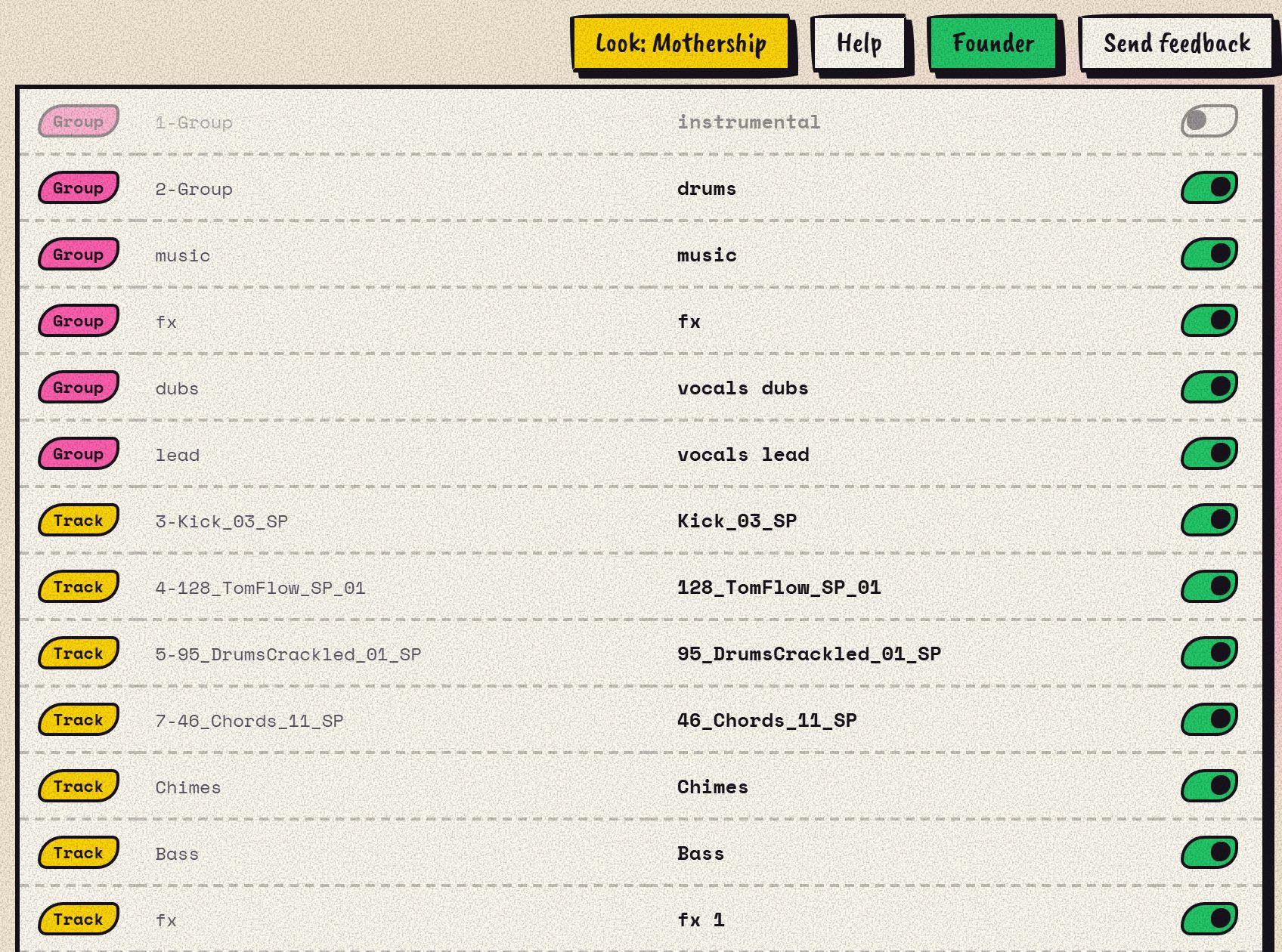
Only want group stems? Switch every track off and leave the groups on. A track that's switched off doesn't get its own file, but it still plays inside its groups, the Instrumental and the add-up. To leave a track out of the song completely, mute it in Live.
Switch on what you need
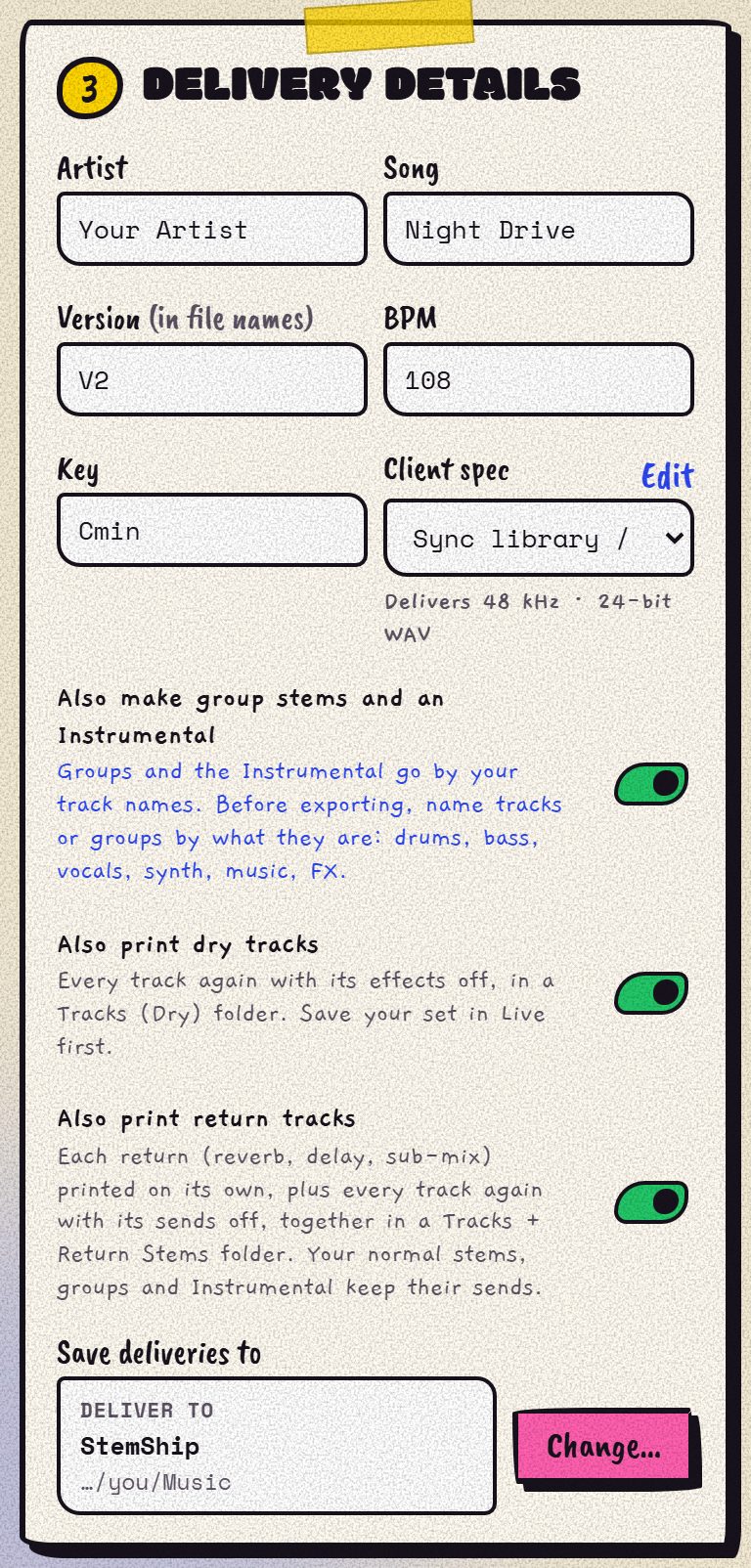
Under Delivery details, fill in the artist, song and version, pick the client spec, then turn on the extras:
| Switch | What you get |
|---|---|
| Also make group stems and an Instrumental | Your groups as stems, plus the Instrumental and any mix versions. Groups go by your track and group names, so name them by what they are (drums, bass, vocals, synth, FX). |
| Also print dry tracks | Every track again with its effects off, in a Tracks (Dry) folder. |
| Also print return tracks | Each return (reverb, delay, sub-mix) on its own, plus every track again with its sends off, together in a Tracks + Return Stems folder. Your normal stems, groups and Instrumental keep their sends. |
You don't need to save your set first. StemShip saves it for you before it switches sets in Live, so no Save box pops up mid-print. You can ignore the "Save your set in Live first" line under the dry option. We're taking it out in the next update.
Add mix versions to the client spec
Click Edit next to the client spec. Under What's in the delivery, type one version per line: a name, a colon, then the groups to leave out. Use the Delivered as names from the stem plan.
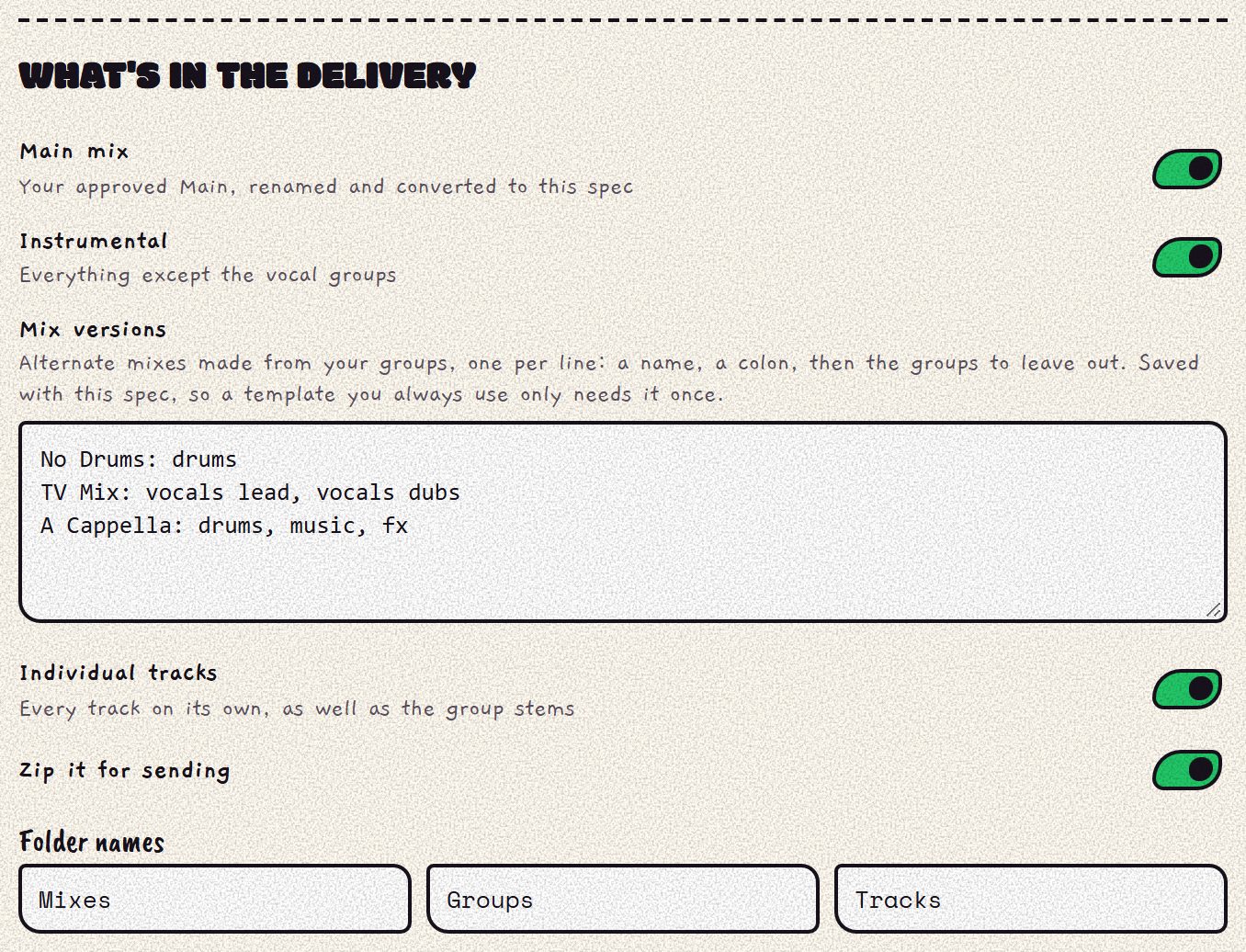
Click Save spec. Versions are saved with the spec, so a client you deliver to every month only needs it once. They come out in the Mixes folder next to the Main and the Instrumental, and they need group stems switched on.
If a name doesn't match a group, StemShip tells you in the Delivery sheet and lists the group names it found, so a typo never quietly gives you the wrong mix.
Select the song and print
- In Live, select the song in the Arrangement: the same range you'd bounce, echo tails included.
- Click Print stems in StemShip and keep your hands off the keyboard and mouse until it's done.
StemShip prints your normal stems first, then opens temporary copies of your set to print the dry and no-sends passes, and reopens your set at the end. Your own set is never changed. With all three switched on, Live renders the song three times, so it takes about three times as long as a normal print.
Pops while it prints? You may hear clicks through your speakers as Live switches between sets and restarts its audio. They aren't in the files.
What's in the delivery
Folder and file names follow your client spec. If the spec says zip it, you get one zip ready to send.
Which folders add up to the Main?
| Folder | Adds up to the Main? |
|---|---|
| Groups or Tracks, plus Difference | Yes, null tested on every print. |
| Tracks + Return Stems (with its own Difference) | Yes, matched to the Main and null tested on its own. |
| Tracks (Dry) | No, by design. They're the raw parts with the processing taken off. |
| Mix versions | Each one is exactly your stems minus the groups you left out, with no Difference mixed in. |
Good to know
What's off in the dry print?
Plugins on your tracks, groups, returns and the Main, and every send turned down. Instruments stay on, so MIDI tracks still play.
Where are the reverbs in Tracks + Return Stems?
In the return stems. Each track is printed without its sends, and each return is printed on its own, so the reverb and delay can be rebalanced or replaced.
My session runs at 48 kHz but the client wants 44.1.
Leave the session alone. Set Live's Export window to the same rate as your session once (Cmd+Shift+R, set Sample Rate, then Cancel; Live remembers it). StemShip converts the finished stems to the client's rate itself, at high quality.
Something didn't come out right?
Send us the Delivery sheet with Send feedback in the app, or email [email protected]. We read every one.